Guided Pre-Processing: Intelligent Automation for Better Model Training
Building a surrogate model starts with your dataset, and the quality of that dataset determines how well the model performs. Until now, preparing data for training — cleaning outliers, splitting cases, and deciding where to run additional simulations — required manual judgment.
Guided Pre-Processing changes that. Rescale now automatically analyzes your dataset and walks you through each preparation step: reviewing flagged data, splitting cases into balanced training and test sets, clustering cases into design-space regions, and identifying where to run new simulations to fill gaps in input coverage. The result is a dataset that's ready to train with, and a clear record of the decisions you made along the way.
Release Highlights
What is it?
A new Analytics tab in the model workflow that sits between your dataset (Data tab) and training (Training tab). After you upload cases and choose your inputs and outputs, Rescale AI Physics Training runs an automated analysis of your data. The results are organized into three areas — Tag (data quality), Split (train/validation/test allocation), and Fill Coverage Gaps (suggestions for new simulations) — each with a summary card at the top of the page so you can see the state of your dataset at a glance.
Why does it matter?
Poor data preparation is one of the most common reasons surrogate models underperform. Cases with unusual input patterns can skew training. Random train/test splits can leave the test set clustered in one region of the input space. And gaps in input coverage mean the model has to extrapolate in areas where it has no data. Guided Pre-Processing catches these problems before you spend compute on training — not after you discover the model doesn't generalize.
How is it used?
Any user building a surrogate model in AI Physics can use Guided Pre-Processing. After creating a dataset, navigate to the Analytics tab. The analysis runs automatically, and you work through each section at your own pace before moving to training.
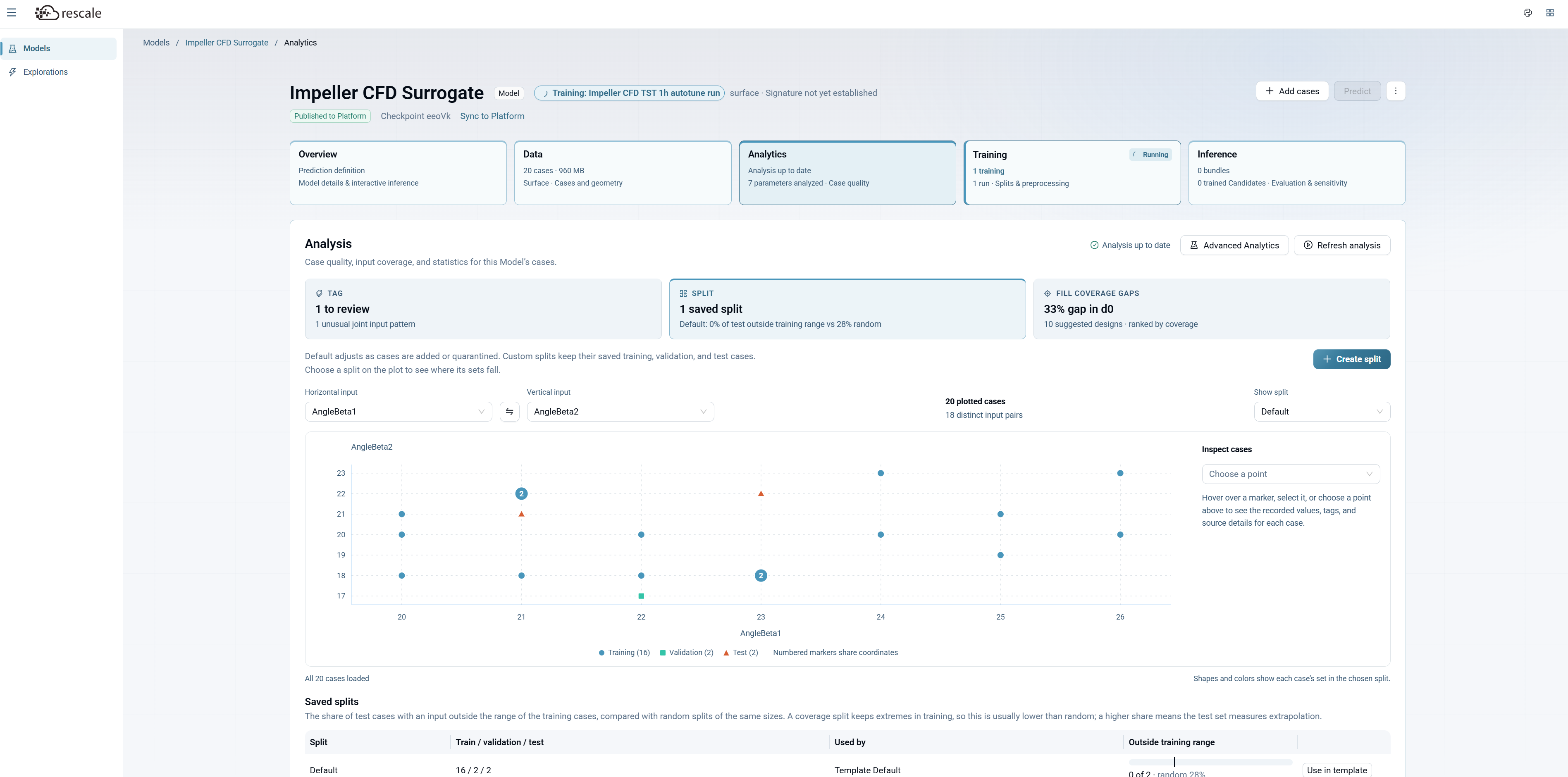
The Analytics tab with summary cards for data quality (Tag), dataset splitting (Split), and coverage gap analysis (Fill Coverage Gaps)
Getting Started
-
Review Your Dataset In the Data tab, review extracted cases and click Choose Inputs & Outputs to select training parameters.
-
Review Flagged Cases Navigate to the Analytics tab. Select the Tag card to inspect findings, evidence, and recommendations for flagged cases. Click Evidence to inspect or Quarantine to exclude cases from training without deleting them.
-
Explore Design-Space Regions (Optional) Expand Design-space regions in the Tag area, choose a clustering method (e.g., PCA / K-means), features, and number of regions, then click Find regions to group cases.
-
Review the Proposed Dataset Split Select the Split card to view proposed train, validation, and test allocations on a scatter plot. Compare splits in the Saved splits table or click + Create split for custom assignments.
-
Fill Coverage Gaps Click Fill Coverage Gaps to analyze unsampled ranges and review suggested input combinations. Click Download designs to export parameters for new simulation runs.
-
Train Your Model Go to the Training tab and click Train to launch with your prepared split, or customize preprocessing settings first.
For more on building surrogate models, see the AI Physics documentation.