Workflow Job Setup Enhancements
Four enhancements to workflow job configuration are now available: parameterized software versions, core counts, and wall time; hardware recommendations; inline file editing; and hardware selection filters. These reduce the number of clicks to configure a job node. See the Workflows documentation for details.
Release Highlights
Parameterize Software Versions, Core Count, and Wall Time
Template authors can now expose software version, core count, and wall time as parameters on a Job node. Runners see only those fields when they launch the workflow. Everything else stays locked to the template defaults.
Open a Job node's configuration and select which fields to parameterize. You can set default values and allowed ranges. Runners see these as input fields when they start a run.
Hardware Recommendations
Job nodes now suggest hardware based on your workload. Next to the coretype list, you see three recommended hardware options suitable for the solver you've already set.
When you open the hardware section of a Job node, recommendations appear on the right. Accept one with a click, or review the full list.
Edit Files in Node Configuration
You can open and edit input files directly inside a workflow node's configuration panel, without downloading, editing externally, and re-uploading.
In a Job or Workstation node's configuration, click an attached input file to open it in an editor panel. Save your changes and the updated file is used when the workflow runs.
Hardware Selection Filters
The Job node hardware selector now has filters for processor type, core count, memory range, and OS. Set your constraints and the list shows only what qualifies.
Scrolling through 200+ coretypes to find one with at least 96 cores or GPU support takes time, especially if you do it often. Filters narrow the list before you start reading it.
Open the hardware section in a Job node. Use the filter controls at the top of the coretype list: set processor type, set minimum/maximum core counts, select a memory range, or filter by OS. The list updates as you change filters.
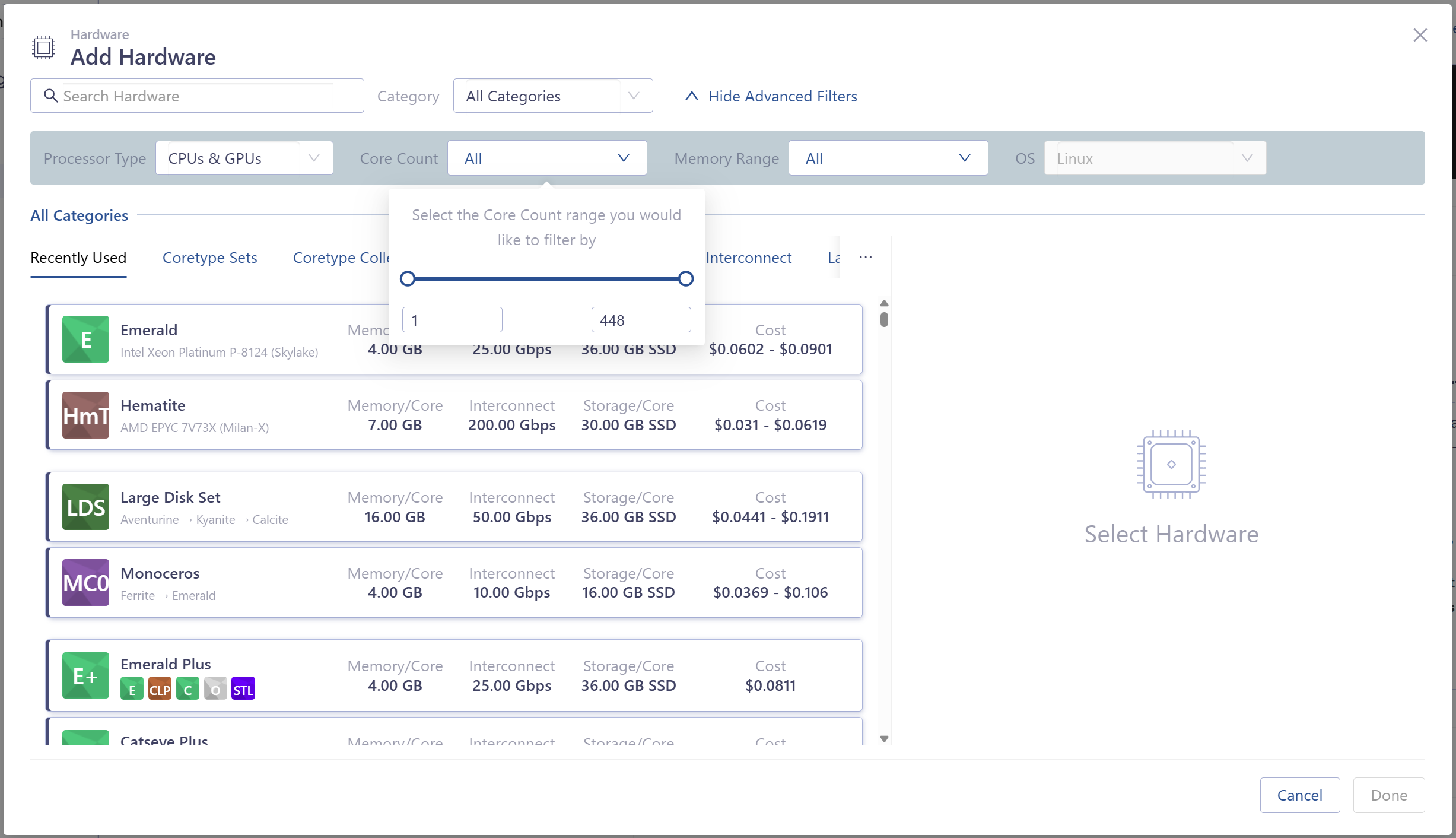
Job node hardware selector with core count and pricing filters applied
Getting Started
These features are available now in Workflows.
- Open Workflows from the Rescale navigation menu
- Create or edit a workflow template with a Job node
- In the Job node settings:
- Use Parameters to expose software version, core count, or wall time as runner inputs
- Open Hardware to see recommendations and filter the coretype list
- Click any attached file to edit it inline
See the Workflows documentation for reference.